
2026-05-13
How to use Claude Code from your phone
Use Qodlink to steer Claude Code on your Mac or Windows desktop from iPhone or Android: install the desktop app, sign in, authenticate Claude, then open the PWA.
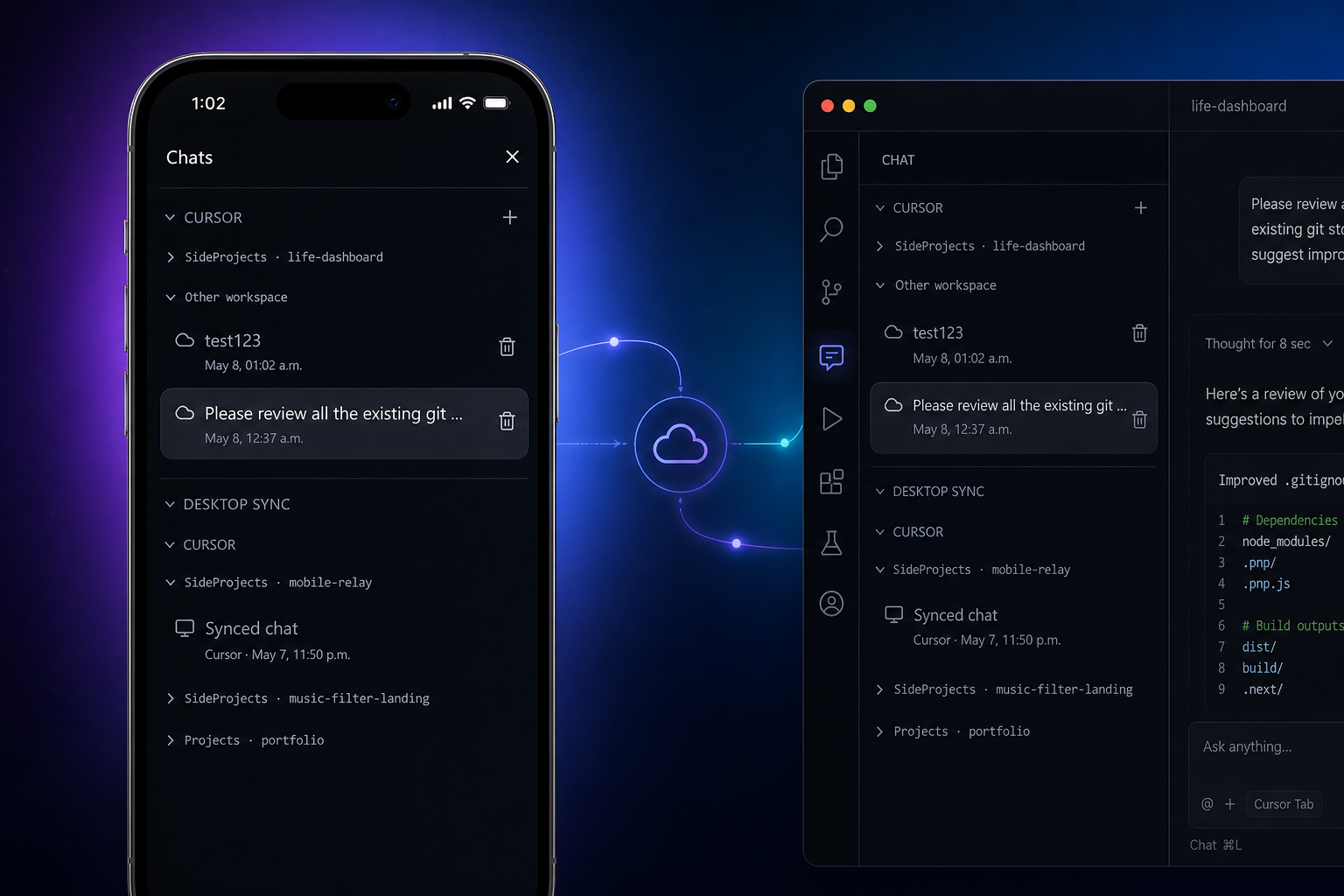
If you already run Claude Code on a Mac or Windows PC, your entire development environment — repos, credentials, running servers, shell history — lives on that machine. Qodlink punches an end-to-end encrypted tunnel from that machine straight to your phone, so you can steer agents, review diffs, and preview your running app without ever opening a laptop.
This article covers how Qodlink works, how to get set up in under five minutes, and how it compares to Claude Code's built-in remote access so you can pick the right tool for your workflow.
Why mobile access to Claude Code matters
Modern AI-assisted development moves fast. An agent might be mid-task while you are commuting, cooking, or away from your desk. The difference between catching a runaway agent loop immediately versus two hours later is real money and real lost context.
The naive solution — SSH into your machine from a phone terminal app — works in a pinch, but it is friction-heavy: you are staring at a 375-pixel-wide shell, manually managing tmux sessions, and getting zero visibility into what changed in the codebase. There is no diff view, no localhost preview, no way to start or stop your dev server with a tap, no test runner, and no push notification when the agent finishes.
Qodlink is the alternative purpose-built for this exact scenario.
What you need before you start
- Claude Code installed and running on your desktop. This is non-negotiable — Qodlink is a remote control, not a replacement. Your repos, your environment, your credentials stay on the machine you already trust.
- A Qodlink account and the Qodlink desktop app from the download page.
That is it. No VPN, no port-forwarding, no reverse proxy to configure.
Getting set up in three steps
1. Install the Qodlink desktop app
Download the app for Windows or macOS from qodlink.com/download. When you launch it, it starts a lightweight local server on your machine and establishes an outbound encrypted tunnel — no inbound firewall rules needed, nothing to open in your router.
2. Sign in and configure Claude authentication
Sign in with the same account you created on this site. Then open desktop app Settings and authenticate Claude in one of two ways:
- Anthropic API key — paste your key; it is stored locally on the machine and never leaves it.
- Subscription auth — if your local Claude Code session is already authenticated, Qodlink can piggyback on that without asking for a key again.
One account. Keys on the machine you trust. Nothing passed through Qodlink's servers.
3. Open the Qodlink PWA on your phone
Navigate to qodlink.com/app in Safari or Chrome, then "Add to Home Screen" to install the PWA. Sign in with the same account and you are connected to your desktop.
What you can do from your phone
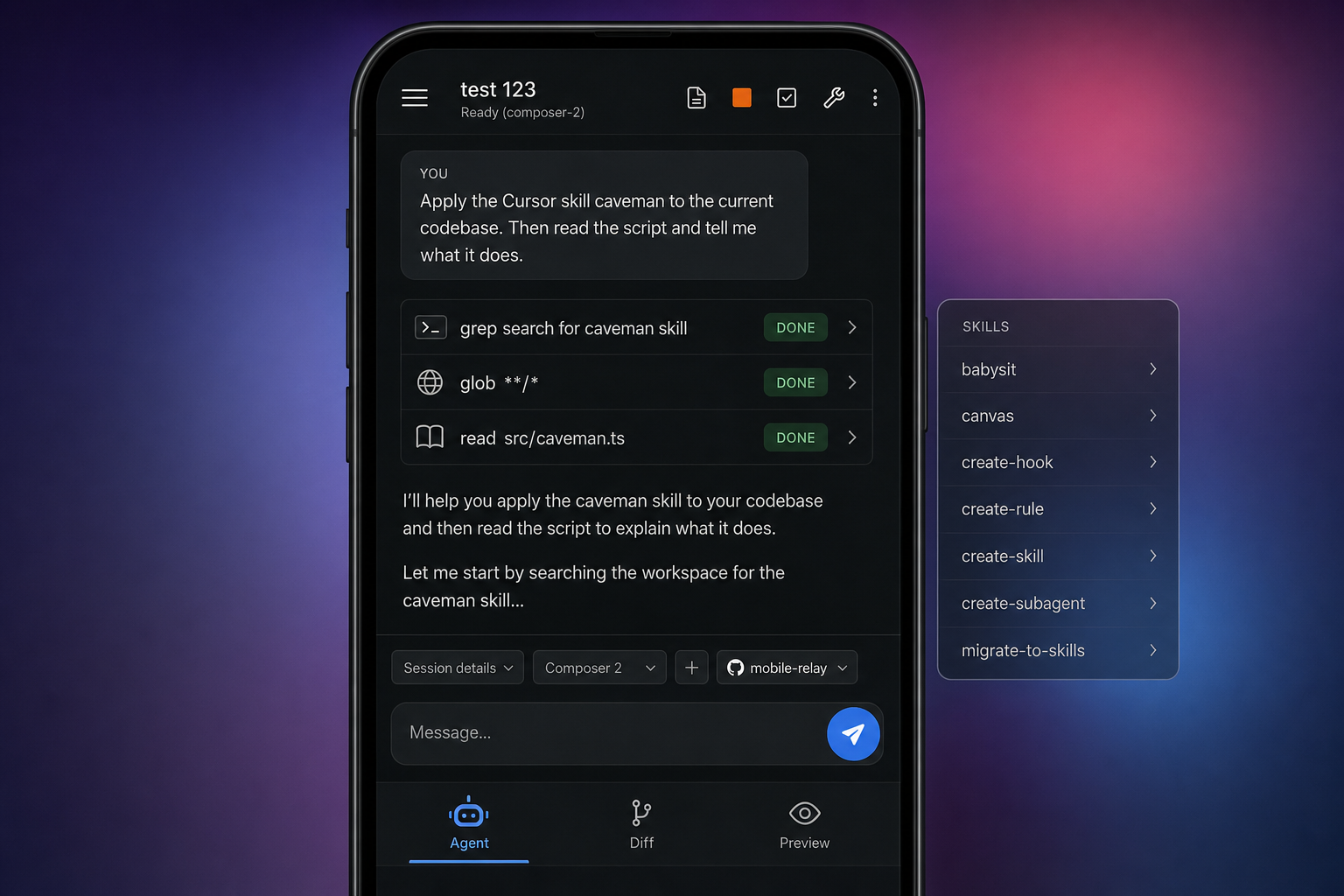
Qodlink's mobile interface is organized around three tabs, each solving a distinct remote-development problem.
Agent tab
Chat with Claude Code agents running on your desktop. Start new sessions, continue existing ones, switch between projects, and send follow-up messages — all from a clean, thumb-friendly UI. The agent runs on your machine; your phone just shows the conversation and lets you steer it.
Push notifications fire when an agent run completes, so you are not staring at your screen waiting.
Diff tab
Every code change the agent makes streams back as a git-style diff. You can step through each changed file, read the before/after, and catch problems before merging — without pulling up a laptop or navigating to your editor. This is especially useful for reviewing large refactors or multi-file edits that agents tend to produce.
Preview tab
The tunnel proxies localhost back to your phone. Open the Preview tab and your running dev server — whatever port it is on — renders in a real browser view on your phone screen. Same app, same hot-reload, zero reinstallation of dependencies on the phone.
Project controls
Beyond reading what the agent did, you can also start, stop, and restart your dev server with a single tap from the mobile UI. Need to verify that the agent's changes didn't break anything? Hit Run tests and watch your test suite stream output to your phone in real time. These are the kinds of operations that, with SSH alone, require navigating a terminal, finding the right process, and hoping your tmux layout is still intact.
Qodlink vs. Claude Code Remote: a direct comparison
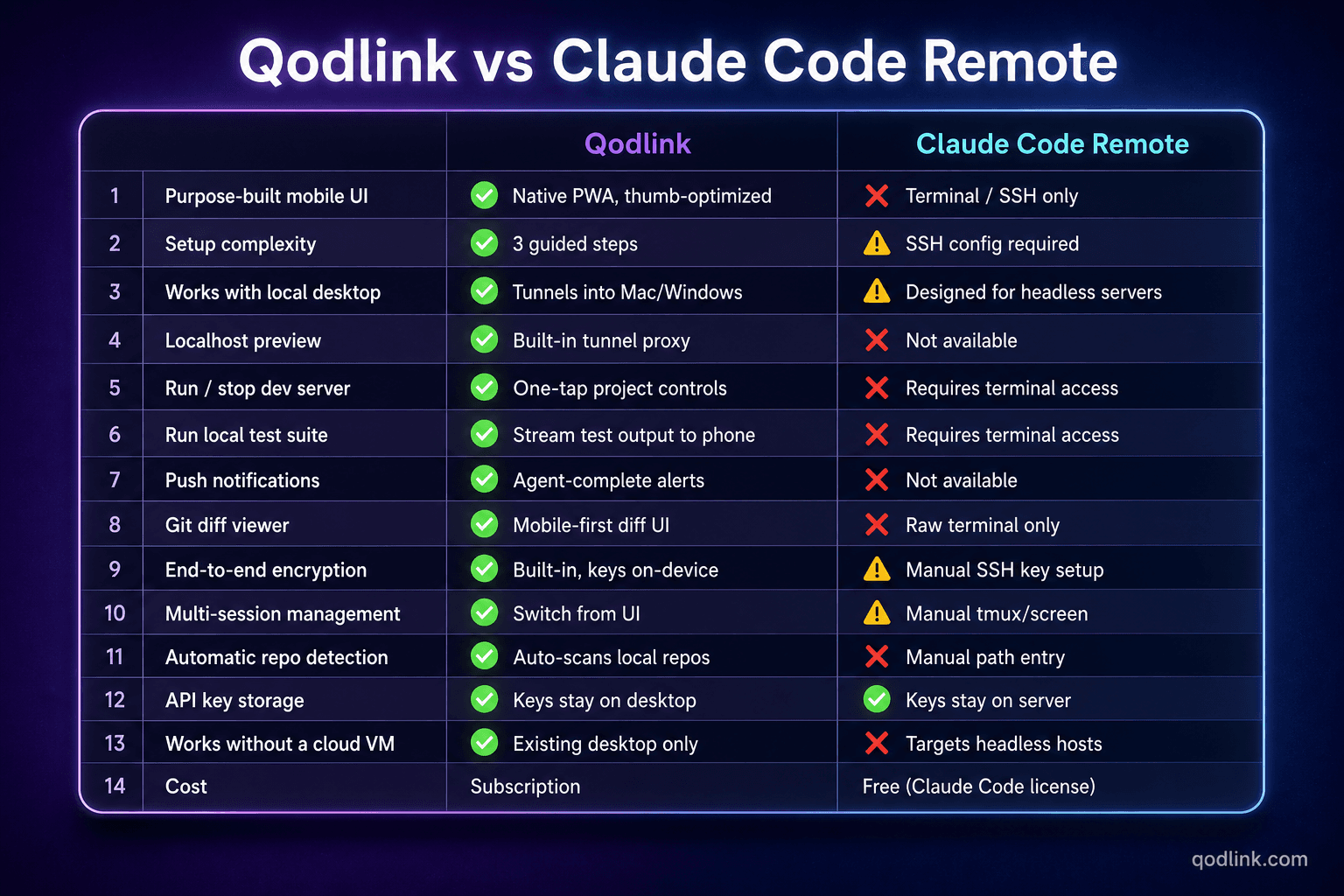
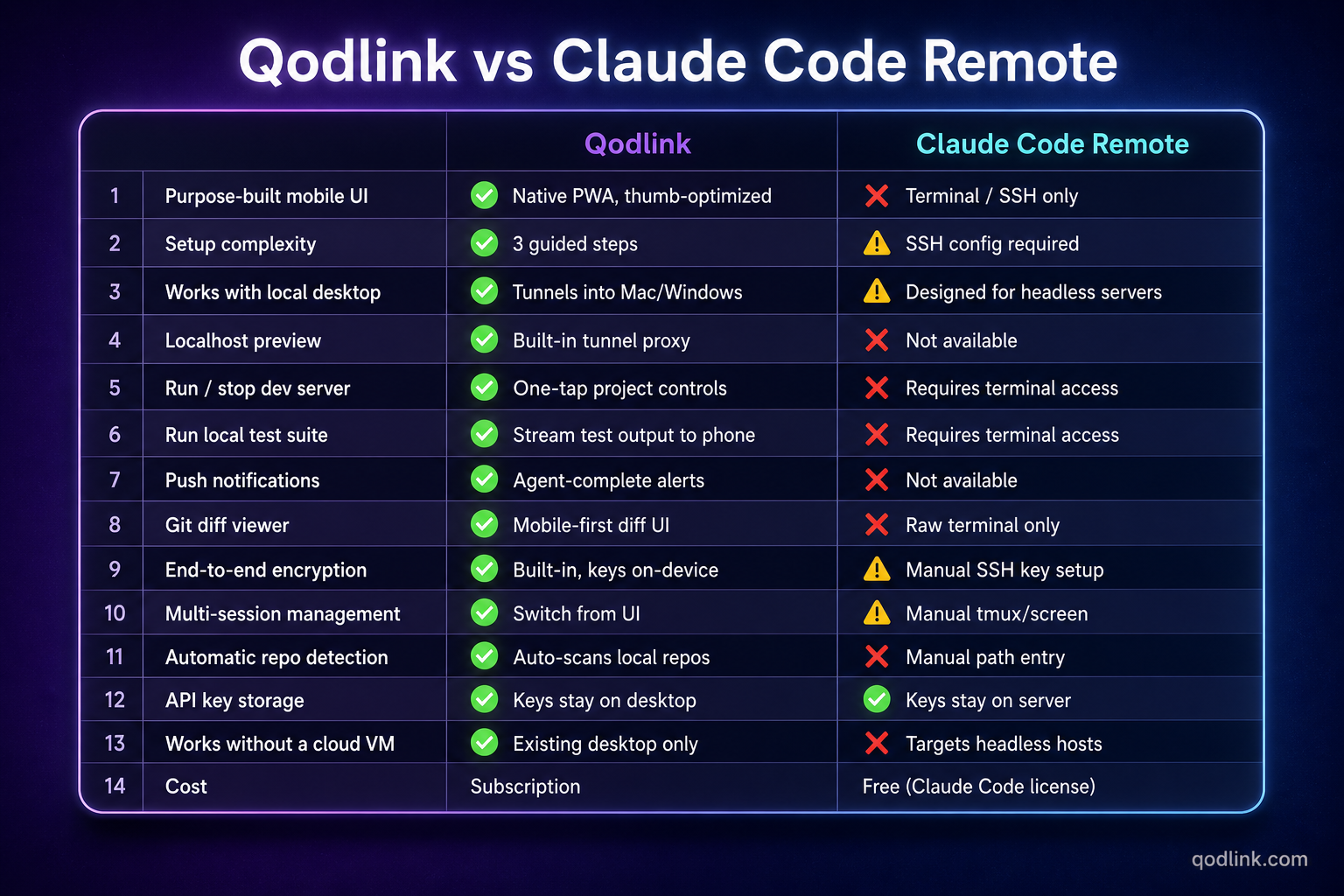
Claude Code ships with its own Remote capability: you can run claude over SSH on a headless server, use its API in headless mode, or access Claude.ai via a mobile browser. These are legitimate options. Here is how they stack up against Qodlink for the day-to-day "I'm away from my desk" use case.
| Feature | Qodlink | Claude Code Remote (built-in) |
|---|---|---|
| Purpose-built mobile UI | ✅ Native PWA, thumb-optimized | ❌ Terminal / browser SSH only |
| Setup complexity | ✅ 3 guided steps, no networking knowledge needed | ⚠️ Requires SSH config, reverse tunnel, or cloud VM |
| Works with local desktop | ✅ Tunnels into your existing Mac/Windows machine | ⚠️ Designed for headless servers; local tunneling is manual |
| Localhost preview | ✅ Built-in tunnel proxies any local port to your phone | ❌ Not available; you must set up separate port forwarding |
| Run / stop dev server | ✅ One-tap project controls from mobile UI | ❌ Requires terminal access |
| Run local test suite | ✅ Stream test output to your phone | ❌ Requires terminal access |
| Push notifications | ✅ Fires when agent run completes | ❌ Not available |
| Git diff viewer | ✅ Mobile-first diff UI streamed from desktop | ❌ Raw terminal output only |
| End-to-end encryption | ✅ All traffic encrypted; keys never touch Qodlink servers | ⚠️ Depends on your SSH key discipline |
| Multi-session management | ✅ Switch between repos and sessions from the UI | ⚠️ Manage tmux/screen sessions manually |
| Automatic repo detection | ✅ Desktop app scans and lists your local repos | ❌ Manual path entry in the CLI |
| API key storage | ✅ Keys stay on your desktop machine | ✅ Keys stay on your server (if self-hosted) |
| Works without a cloud VM | ✅ Runs entirely from your existing desktop | ❌ Remote mode typically targets headless/cloud hosts |
| Cost | Subscription (see pricing) | Free (Claude Code license required) |
The short version: If you are running Claude Code locally on a Mac or Windows machine and want a polished mobile experience, Qodlink is the faster path. Claude Code Remote shines when you are already operating a headless Linux server and are comfortable managing SSH tunnels and terminal sessions.
What Qodlink does not do
Being clear about scope matters:
- Qodlink does not run Claude Code. Your desktop does. If your desktop is off or asleep, there is nothing to connect to.
- Qodlink does not store your code. Files never leave your machine. The tunnel carries commands and output, not your repo.
- Qodlink is not a code editor. It is a remote control. For editing individual files, you still open your IDE on the desktop.
Plain-English summary
Keep using Claude Code on your desktop exactly as you do today. Install Qodlink on that same machine, sign in, configure Claude authentication once, then open the Qodlink PWA on your phone. From that point on, leaving your desk does not mean leaving your work. Agents keep running, diffs keep streaming, and your app keeps serving — and you can see and steer all of it from your pocket.